Quick Summary
A healthy home office starts with a quiet, dedicated room that is separate from your bed and dining space, with natural light from one side. Adjust your chair so your feet are flat, knees near a right angle, and elbows near 90 degrees, then place the monitor at or just below eye level about an arm’s length away.
- Choose a room with a door you can close or a corner away from foot traffic.
- Keep feet flat, knees at about a right angle, and elbows near 90 degrees.
- Set the top of the monitor at or just below eye level, about an arm’s length away.
- Use an external keyboard and mouse when working on a laptop.
- Stand and walk for two minutes each hour to counter long periods of sitting.
Table of Contents
- Start With a Quiet, Dedicated Workspace
- Step 2: Choose an Ergonomic Chair and Set Your Desk Height
- Step 3: Layer Natural Light With Task Lighting
- Step 4: Improve Air Quality and Ventilation
- Step 5: Build Movement and Stretch Breaks Into Your Day
- Step 6: Reduce Noise, Clutter and Electrical Hazards
- Booking a Wellness Consultation for Your Work-Related Strain
- Frequently Asked Questions
Start With a Quiet, Dedicated Workspace
Last Updated: October 30, 2026
A healthy home office starts with the room you choose, not the chair you buy.
Good spots share a few traits:
- A door you can close, or at least a corner away from foot traffic
- A place that is not your bed or your dining room
- Natural light from one side, not directly behind or in front of the screen
Watch out: A room that is quiet on weekdays may get loud on weekends. Test it for a full workday before you commit.
Separating work from personal living space matters as much as location. When work lives in the bedroom, the brain struggles to switch off at night.
Step 2: Choose an Ergonomic Chair and Set Your Desk Height
A supportive chair and the right desk height do more for your posture than any gadget. Start with the chair.
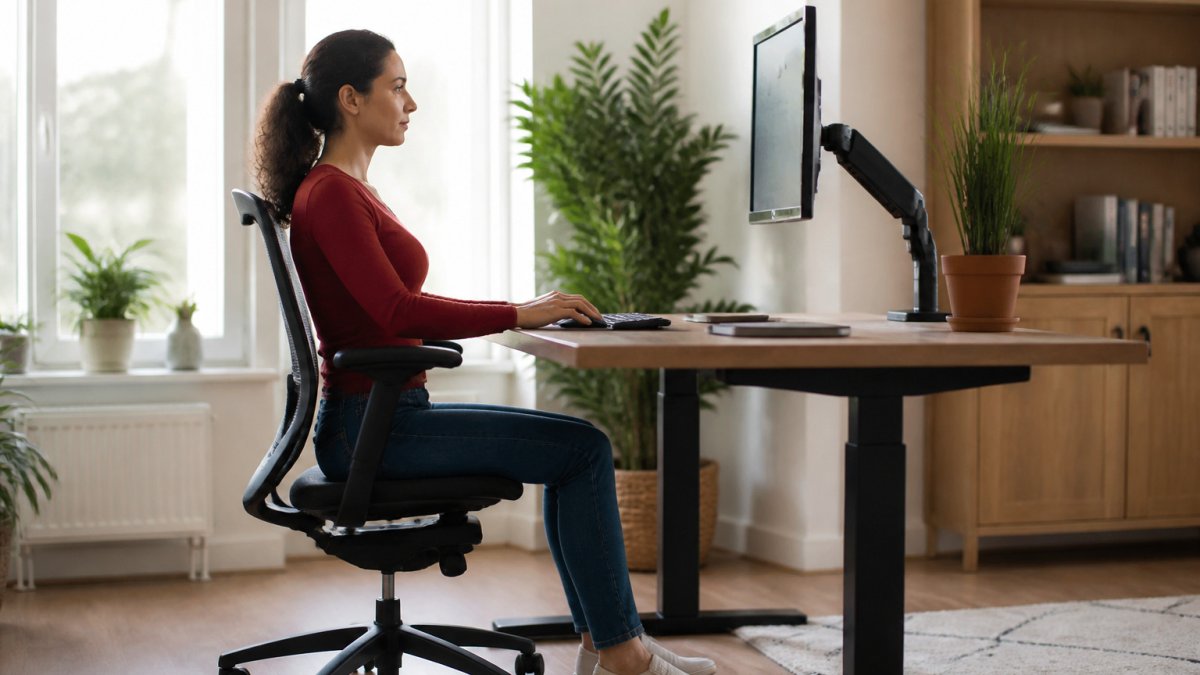
Then set your desk height. A practical target looks like this: Learn how to sit at a desk properly with seven steps for better posture.
- Feet flat on the floor, or on a footrest
- Knees at about a right angle
- Elbows bent near 90 degrees, with shoulders relaxed
If your desk is too high, raise your chair and use a footrest. If the desk is too low and cannot be adjusted, raise the desk surface with blocks or buy a height-adjustable model.
Position Your Monitor and Keyboard
Screen placement is where many home offices go wrong. Here is how to fix it: Read these daily habits that help prevent tech neck.
- Place the top of the monitor at or just below eye level
- Sit about an arm’s length from the screen
- Use an external keyboard and mouse with the laptop raised on a stand
Watch out: Propping a laptop up without a separate keyboard often moves the problem to the wrists. Raise the screen, then bring the keyboard to you.
The article gives concrete targets for desk height and screen placement that are easy to scan.
| Setting | Target | Note |
|---|---|---|
| Knees | About a right angle | Feet flat or on a footrest |
| Elbows | Near 90 degrees | Shoulders relaxed |
| Monitor top | At or just below eye level | Avoids pushing the head forward |
| Screen distance | About an arm’s length | Sit back from the screen |
| Mouse position | Close to keyboard | Keeps elbow near your side |
Step 3: Layer Natural Light With Task Lighting
Light affects both eye comfort and energy, but “good lighting” only helps if you can measure it. Most home-office guides stop at “avoid glare.” The practical version is a three-layer system: daylight as the base, task light for close work, and ambient light to soften contrast, plus a screen setup that keeps your eyes from doing extra work.
Build the Three Layers
- Daylight (base layer). Position the desk so the window sits to your side, roughly perpendicular to the screen. Facing a window puts bright sky behind the monitor and forces your pupils to constantly readjust; sitting with your back to a window throws glare onto the glass. If you cannot avoid either, a sheer curtain or a monitor hood diffuses the worst of it.
- Task light (close layer). A desk lamp with an adjustable arm and a shade that directs light onto paper or keyboard, not into your eyes or onto the screen, fills the gap daylight leaves after mid-afternoon. Aim the beam across your work surface rather than over your shoulder.
- Ambient light (fill layer). A ceiling fixture or floor lamp reduces the contrast between a bright screen and a dark room.
Match your screen brightness to the room, not to the brightest thing in it. A quick test: if the white of a blank document looks like a light source, the screen is too bright; if it looks gray and muddy, it is too dim.
Set the Screen for Your Eyes, Not Just Your Neck
Lighting and screen placement work together. Use these targets as a starting point, then adjust to what feels neutral:
- Height: the top of the screen at or slightly below eye level, so your gaze drops a few degrees rather than tilting up.
- Distance: roughly an arm’s length from your eyes to the screen, closer for smaller laptops, farther for large monitors.
- Angle: tilt the screen back slightly (about 10-20 degrees) so it faces your eyes squarely and reflects less overhead light.
Reduce Digital Eye Strain With Breaks, Not Just Gear
Even a perfect setup strains eyes during long screen sessions because staring reduces blink rate. Many people use the 20-20-20 rule as a simple break reminder: every 20 minutes, look at something about 20 feet away for about 20 seconds. Pair it with a deliberate blink or two, most people blink far less often at a screen than in conversation.
Other low-cost adjustments that help:
- Use the operating system’s night-shift or warm-color setting in the evening to reduce blue-light exposure before bed.
- Increase text size rather than leaning toward the screen.
- Keep the screen clean; smudges scatter light and soften focus.
If you wear glasses or contacts, tell your eye care provider how many hours you spend at a screen. A single-vision prescription tuned for reading a book at 16 inches is often wrong for a monitor at arm’s length, and the mismatch shows up as end-of-day headaches.
Lighting is not a one-time purchase. Recheck your setup when the seasons change, when you move desks, or when you add a second monitor, the glare that was fine in winter can be brutal in summer.
Start your wellness journey today! →
Step 4: Improve Air Quality and Ventilation
Indoor air is often overlooked, yet a closed room with poor airflow can leave you stuffy and tired by mid-afternoon. Open a window when weather allows, and run a fan to keep air moving.
Keep the workspace free of strong cleaning products and scented candles, which add pollutants to the air you breathe all day. Houseplants can add some visual comfort, but they should not be treated as a replacement for ventilation.
Step 5: Build Movement and Stretch Breaks Into Your Day
Sitting for hours is hard on the body even with a perfect setup. Frequent, short movement is often more practical than one long workout. Many people find that standing up every 30 to 60 minutes and doing a minute of simple movement helps them feel less stiff. Explore a yoga routine for adrenal health with benefits and poses to add gentle stretching to your day.
Try building these habits in:
- Stand and walk for two minutes each hour
- Roll the shoulders and stretch the chest against a doorframe
- Gently turn the head side to side to ease neck tension
Step 6: Reduce Noise, Clutter and Electrical Hazards
Noise, clutter, and wiring problems are the three background stressors of a home office. None of them shows up as back pain, but each quietly drains focus and, in the case of electrical hazards, creates real risk. Treat them as one system: the same soft surfaces that absorb sound also hide cables, and the same decluttering pass that clears your desk clears trip hazards.
Control Noise With Placement and Soft Surfaces
Sound bounces off hard floors, bare walls, and glass. You do not need a recording studio, you need to break up those reflections and separate yourself from the loudest sources.
- Placement first. Put the desk as far as practical from the kitchen, laundry, entryway, and shared walls with noisy neighbors.
- Soften the room. A rug with a pad, curtains, upholstered furniture, and a bookshelf full of books can help soften the sound of a room.
- Seal the gaps. A door snake or weatherstripping around a door can help reduce hallway and household noise.
For calls, noise-canceling headphones help you hear, but they do not stop your voice from carrying. If you take frequent calls, a directional microphone or a headset with a boom arm keeps your voice from projecting into the rest of the house.
Test your room the way a colleague will hear it: record a short call on your phone from where you sit. If you hear an echo, add soft furnishings before you buy a microphone.
Declutter With a Daily Reset, Not a Weekly Purge
Clutter accumulates because decisions get deferred. A short daily reset beats an occasional deep clean:
- Keep only what you touch daily on the desk surface; everything else goes in a drawer, a shelf, or a bin.
- Use one inbox tray for paper and one small bin for cables and chargers, so loose items have a home.
- Clear the desk at the end of the day. A clear surface makes it easier to start work and easier to stop, the same boundary signal as closing the office door.
Make Power and Cables Safe and Tidy
Electrical safety belongs in every setup, and it is easy to get wrong when outlets are scarce.
- Use a surge-protected power strip rather than daisy-chaining strips into one another.
- Plug high-draw devices, space heaters, laser printers, coffee makers, directly into a wall outlet, not into a strip shared with your computer.
- Keep cords out of walkways and away from chair wheels. Cable clips, a cord tray under the desk, or a raceway along the baseboard keep them contained.
If a plug or cord feels warm to the touch, stop using it. A warm plug or cord can indicate a problem, so replace it rather than adding another device to it.
A quiet, clear, safely wired workspace does not require a renovation. A rug, a door snake, a daily reset, and a properly rated power strip cover most of the gap between a distracting room and a focused one.
Booking a Wellness Consultation for Your Work-Related Strain
If you have tried ergonomic fixes and still feel persistent neck, back or shoulder pain, you may want more help. You can read how physical therapy compares to chiropractic care before choosing your next step.
If your strain keeps returning, you can learn more about integrated chiropractic care and whether it fits your situation. Reach out to start your wellness journey today.
Frequently Asked Questions
How do I set up a healthy home office?
Start with a quiet spot that separates work from personal living space. Choose a chair that supports your lower back and a desk height that lets your elbows rest at roughly a right angle. Place your monitor at or just below eye level, about an arm’s length away, and layer natural daylight with task lighting. Keep the area ventilated, clear of clutter and cables, and plan short movement breaks throughout the day. Adjust each element gradually and notice how your neck, shoulders and back respond over the next few weeks.
What is the best ergonomic setup for a home office?
A good setup keeps your body in a neutral position. Your feet should rest flat on the floor or a footrest, your knees near hip level, and your back supported by the chair’s lumbar area. Keep your wrists straight while typing and your shoulders relaxed rather than raised. A separate keyboard and mouse, and a monitor placed directly in front of you, can also help with comfort. Review each element periodically until the setup feels natural.
How often should I take breaks from sitting at my desk?
Many people find it helpful to stand, stretch or walk for a minute or two every 30 to 60 minutes. Simple home office stretch breaks can include rolling your shoulders, gently tilting your head, reaching your arms overhead, and standing up to refill water. Frequent movement interrupts long periods of static posture, which is often linked to muscle tension in the neck and back. If you already have persistent pain, a qualified healthcare professional can advise on what is right for you.
What lighting is best for a home office?
Combine three layers. Position your desk so natural light comes from the side rather than directly behind or in front of your screen, which reduces glare. Add ambient lighting to soften overall brightness, and use an adjustable task lamp to illuminate paperwork or your keyboard. Aim for light that is comfortable rather than harsh, and consider reducing screen brightness to match the room. These steps can help lessen eye strain during long working hours.